
01 / Set it up
Set a biweekly iPhone alarm in four steps
Create an alarm
Open Alarm Pro and tap +. Give the alarm a useful label, then allow alarm access if the app asks.
Choose Every 2 Weeks
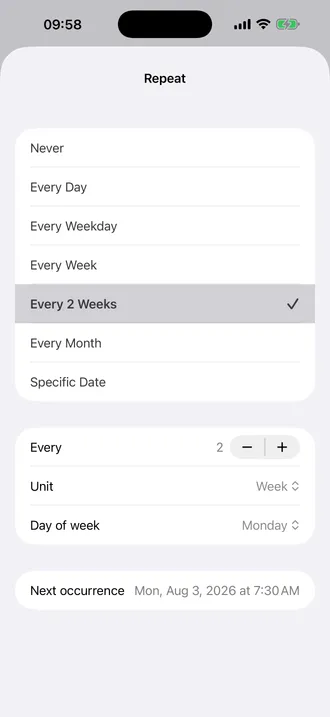
Open Repeat and tap Every 2 Weeks. The interval editor should show Every 2 and Unit Week.
Pick the weekday and starting week
Choose the Day of week. Under Next occurrence, select the first date that matches the alternating week you need; this determines which set of weeks the alarm follows.
Set the time and save
Return to the alarm editor, choose the time, and tap Save. Check that the alarm is enabled and that its next ring matches your schedule.
Why doesn’t iPhone Clock offer an every-other-week repeat?
The Clock app lets you repeat an alarm on chosen days of the week. A Monday alarm therefore rings every Monday; there is no control for skipping the Monday in between. Apple shows that weekday-based Repeat control in the iPhone Clock guide.
A repeating Reminder or Calendar event may be enough when you only need a notification. When you want an alarm with a visible two-week interval, a chosen start week, and a next-ring preview, Alarm Pro keeps those settings together.
Need a date such as the 1st or 15th instead? Follow the monthly alarm on iPhone guide. A monthly schedule follows the calendar date, while Every 2 Weeks follows a weekday in alternating weeks.
02 / More flexible schedules
Control which week starts the pattern—and when it ends
Every other week sounds simple until the first date is wrong. Alarm Pro shows the schedule before you save and also supports longer intervals and finite series.
Start on the correct alternate week
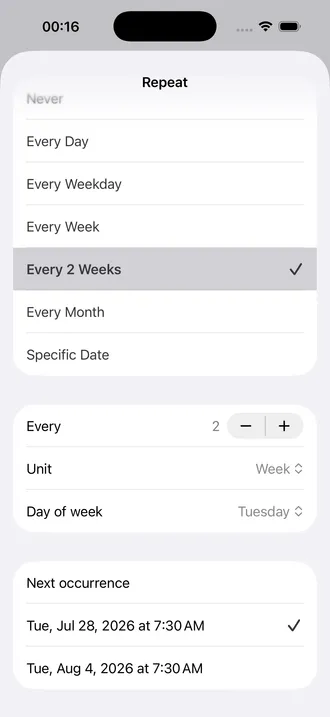
A two-week cycle has two possible starting phases. Use Next occurrence to choose the first matching date—for example, this Tuesday or the following Tuesday—so the alarm follows the weeks you intend.
Stop after a set number of rings
Turn on End after, choose Times, and enter the number of scheduled alarms. For six biweekly check-ins, enter 6. The series stops after its sixth ring; Last occurrence shows the final date.
Use another number of weeks
The same interval editor can run every 3 or 4 weeks: change Every while keeping Unit set to Week, then choose the weekday and starting date.
Switch to a calendar-based schedule
Use Month for a fixed day each month, Year for an annual date, or Specific Date for one alarm. These are different from a two-week rhythm and stay explicit in the editor.
03 / FAQ
Every other week alarm questions
Can the iPhone Clock app set an alarm every other week?
Clock can repeat an alarm on selected weekdays, but that repeats every week. It does not provide a built-in every-two-weeks interval. Alarm Pro adds that interval and shows the next occurrence.
Does biweekly mean every two weeks or twice a week?
The word biweekly can mean either. In Alarm Pro, Every 2 Weeks means once every two weeks on the weekday you choose. It does not mean twice in one week.
How do I choose the correct alternating week?
After selecting Every 2 Weeks and a weekday, look at Next occurrence. Choose the first date that belongs to the schedule you want. That date sets the starting phase for future rings.
Can the alarm stop after six times?
Yes. For an every-two-weeks rule, set End after to Times and Number of times to 6. Check Last occurrence to confirm the final scheduled ring.
Is Alarm Pro free?
Alarm Pro is free to download and use. More advanced features are provided with IAP.
What iPhone software do I need?
Alarm Pro requires iOS 26.1 or later. Allow alarm access and use the app’s test alarm to check a new setup before relying on it.