
01 / Set it up
Set your monthly alarm in four steps
Create an alarm
Open Alarm Pro and tap + to add an alarm. Allow alarm access if the app asks.
Choose a monthly repeat
Tap Repeat, then Every Month. Leave Every at 1 and Unit at Month for an alarm every month.
Pick the day and time
Choose Day of month, then return to the alarm editor to set the time. For example, use the 1st at 9:00 AM for a monthly household check.
Check and save
Review Next occurrence to confirm the first ring, then tap Save. Check that the alarm is enabled.
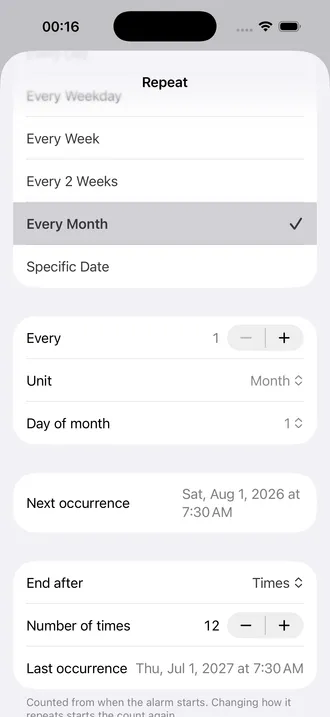

Alarm Pro: Flexible Alarms sets this monthly alarm in a minute, shows every ring ahead in the calendar and can put a Wake-Up Challenge on the mornings that matter.
Why can’t I find “monthly” in iPhone Clock?
You have not missed a hidden setting. The normal Clock app repeats alarms by day of the week, rather than by a day of the month. It cannot directly express “the 15th of every month” or “every three months.” Apple documents the available repeat setting in its iPhone Clock guide.
A monthly Calendar event or Reminder may suit a task that only needs a notification. For a schedule you want to manage as an alarm, Alarm Pro puts the date, repeat interval, and next ring in one place.
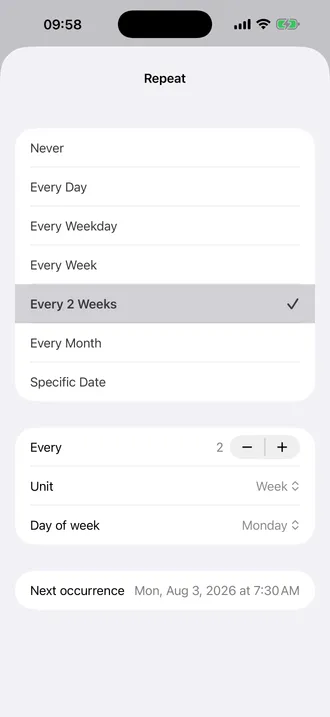
If your schedule follows alternating weekdays instead of a date, use the guide to set an every other week alarm on iPhone.
02 / More flexible schedules
When every month is only the beginning
The same repeat editor handles schedules that do not fit a weekly alarm, including longer intervals and automatic end conditions.
An alarm every 3 months
Choose Every Month, set Every to 3, and keep Unit at Month. Pick a day of the month and your preferred first date under Next occurrence. Useful for a quarterly home-maintenance check.
Monthly, then stop after 6 rings
For six monthly check-ins, keep Every at 1 month. Under End after, choose Times and set Number of times to 6. The series stops after its sixth scheduled occurrence. Check Last occurrence for the final date: this counts rings, not six elapsed months from today.
Every other week, every N days, or yearly
Use Every 2 Weeks for a fortnightly routine, or change the interval unit to Day or Year. Weekly schedules can end after a number of weeks; other intervals use a number of occurrences.
One particular date
Choose Specific Date for an alarm that should ring once on a selected calendar date. You do not need a repeating schedule.
03 / FAQ
Monthly alarm questions, answered
Can I set a monthly alarm in the iPhone Clock app?
Clock’s Repeat control selects days of the week. It does not offer a monthly date or an every-N-months interval. Use Alarm Pro for that schedule.
Is a monthly alarm the same as an alarm every 30 days?
No. Months have different lengths. Use Month to follow a calendar date; an interval of 30 days can drift into a different date in the next month.
What happens if I choose the 31st?
Alarm Pro uses the last available day in a shorter month. A monthly alarm on the 31st rings on April 30, and on February 28 or 29. It returns to the 31st in months that have it.
Can I keep several flexible alarms at once?
Yes. Alarm Pro runs as many monthly, every-other-week, every-N-days and dated alarms as you need side by side, and Snooze All pauses every one of them with one tap.
Will six monthly rings stop exactly six months from today?
Not necessarily. The end condition counts scheduled occurrences from the alarm’s start. The first date affects the final date. Use Last occurrence to check when it will stop.
What iPhone software do I need?
Alarm Pro requires iOS 26.1 or later. Allow alarm access and use the app’s test alarm to check your setup before relying on a new schedule.
