Holidays, days off, one late start
How to skip just the next alarm on iPhone
Clock can skip the next ring only for the wake up alarm of a Health sleep schedule; a regular Clock alarm has to be switched off and remembered. In Alarm Pro, swipe right on any repeating alarm and tap Skip: that one ring is dropped, the row shows the next date, and the schedule carries on. Undo puts it back.
What Clock and Health can do is taken from Apple’s support pages for iOS 26, read October 11, 2026. Skip once arrived in Alarm Pro 1.6, which runs on iOS 26.1 or later.
Free to download and use · Advanced features available with in-app purchases
01 / Two kinds of Clock alarm
Can the iPhone Clock app skip the next alarm?
Partly. Clock shows two kinds of alarm, and they behave differently.
The sleep schedule’s wake up alarm can skip once. If you set up a sleep schedule in Health, Clock lets you tap Change, turn off Alarm under Alarm Options and choose Change Next Alarm Only.[2] Apple’s Health page confirms the effect: after your next wake up time, your normal alarm resumes.
[3] That is a true skip, but there is one such alarm, tied to the sleep schedule.
Every other Clock alarm can only be switched off. Apple’s instructions for an ordinary alarm are to tap the switch next to its time.[1] It then stays off until you turn it back on, and the Monday after a long weekend is when people discover they didn’t.
| Situation | Regular Clock alarm | Sleep schedule wake up alarm | Alarm Pro 1.6 |
|---|---|---|---|
| Skip only the next ring | No — switch off, then on again [1] | Yes — Change Next Alarm Only [2] | Yes — swipe right, Skip |
| Comes back by itself | No [1] | Yes, after the next wake up time [3] | Yes, the next ring stays scheduled |
| Works on biweekly or monthly alarms | No such repeats [1] | One schedule-based alarm [2] | Any repeating alarm |
| Skip a ring several days ahead | No | Next alarm only [2] | Yes, from Today or the Calendar day view |
| Undo | Turn it back on [1] | Edit the next alarm again [2] | Undo bar, or Undo Skip on the row |
02 / In Alarm Pro
How do I skip one alarm in Alarm Pro?
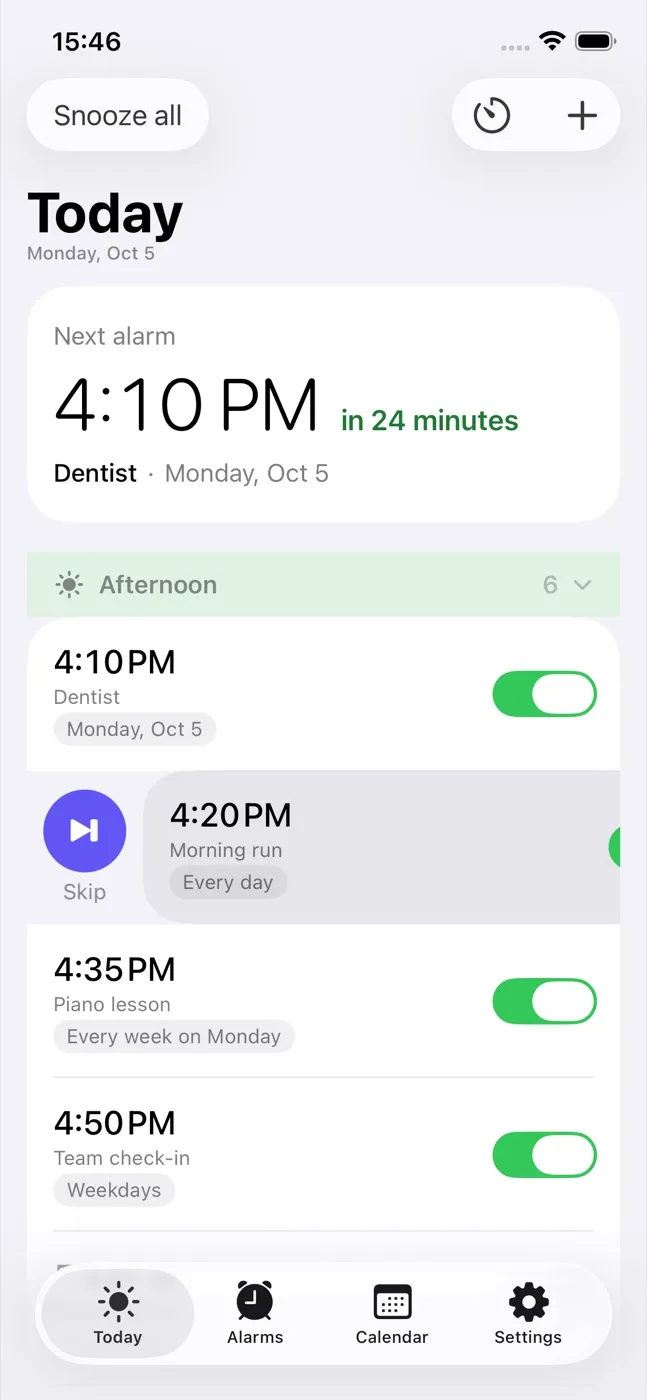
- Find the alarm. It can be on Today, in the Alarms tab or in the Calendar. Skip works on any alarm that repeats — daily, weekdays, every 2 weeks, monthly or every N days.
- Swipe right on it. A purple Skip button appears on the left edge.
- Tap Skip. The row now reads “Skipped” with the date of the following ring, and a bar at the bottom confirms it, for example “Morning run skipped today”.
- Undo if needed. Tap Undo in that bar, or swipe right again later and tap Undo Skip.
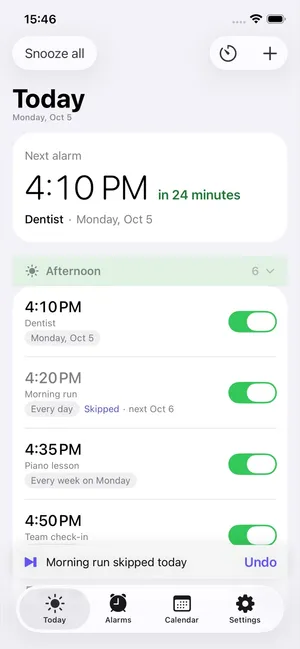
For the first few days with a repeating alarm, Today shows a small “Skip just the next ring” tip until you close it, so the gesture is easy to find.
03 / Not tomorrow — Thursday
Can I skip a specific day further ahead?
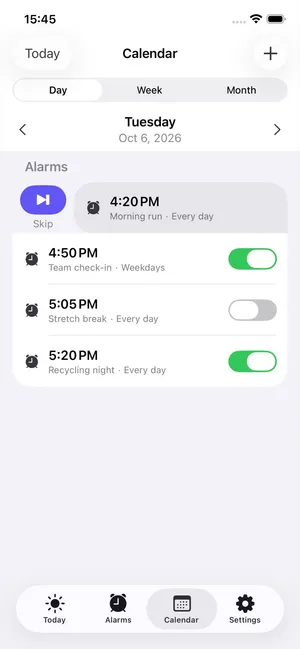
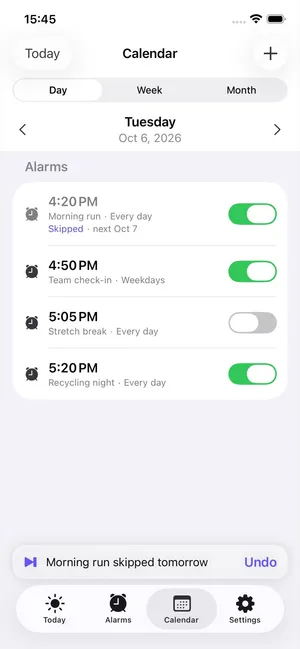
Yes, and this is where it beats a switch. Open the Calendar tab, move to the day you want off in the day view, and swipe right on that occurrence. The alarm keeps ringing until then, skips that one day, and carries on afterwards. In the Alarms tab the row reads “Skipping” with that date, so you can see a pending skip at a glance.
04 / Good to know
What are the limits of Skip once?
- One pending skip per alarm. Once the skipped day has passed, you can skip again.
- Only repeating alarms show Skip; a one-time or specific-date alarm is simply switched off or deleted.
- An alarm that is ringing or snoozed right now can’t be skipped; deal with the current ring first.
- Skipping is free. For a whole trip, Snooze All pauses every alarm for 30 minutes, an hour, a day or a custom span; it is part of the in-app purchase, along with unlimited advanced alarms and extra sounds.
Alarm Pro: Flexible Alarms
Skip a day, keep the schedule
Skip once on any repeating alarm, biweekly and monthly ones included, plus a calendar that shows exactly which rings are left.
Free to download · iOS 26.1 or later
More Alarm Pro guides
Sources
Frequently asked questions
Skipping an alarm: questions
Can I skip tomorrow’s alarm on iPhone without turning it off?
With Clock, only for the wake up alarm of a Health sleep schedule: Change › turn off Alarm › Change Next Alarm Only. A regular Clock alarm can only be switched off and back on. In Alarm Pro, swipe right on any repeating alarm and tap Skip.
How do I undo a skipped alarm in Alarm Pro?
Tap Undo in the bar that appears right after skipping, or swipe right on the alarm again, where the button now says Undo Skip. The ring is back on the schedule.
Can I skip a ring that is several days away?
Yes. In the Calendar tab’s day view, or in the Today list, swipe right on that day’s occurrence. The rings before it still go off; only the one you chose is skipped.
Can I skip two upcoming rings of the same alarm?
Not at once. Each repeating alarm holds one pending skip; after that skipped day has passed you can skip another. For a longer break, switch the alarm off or use Snooze All.
Is skipping free?
Yes. Skip once works on every repeating alarm in the free version. Snooze All, which pauses every alarm for 30 minutes, an hour, a day or a custom span, is part of the in-app purchase.
How Clock and Health behave is summarised from Apple’s support pages on the date above. iPhone, iOS and Health are Apple Inc. trademarks; Neobile LLC, maker of Alarm Pro, is not affiliated with Apple.