Wake-Up Challenge · Math, Typing, Memory, Shake
A math alarm for heavy sleepers on iPhone
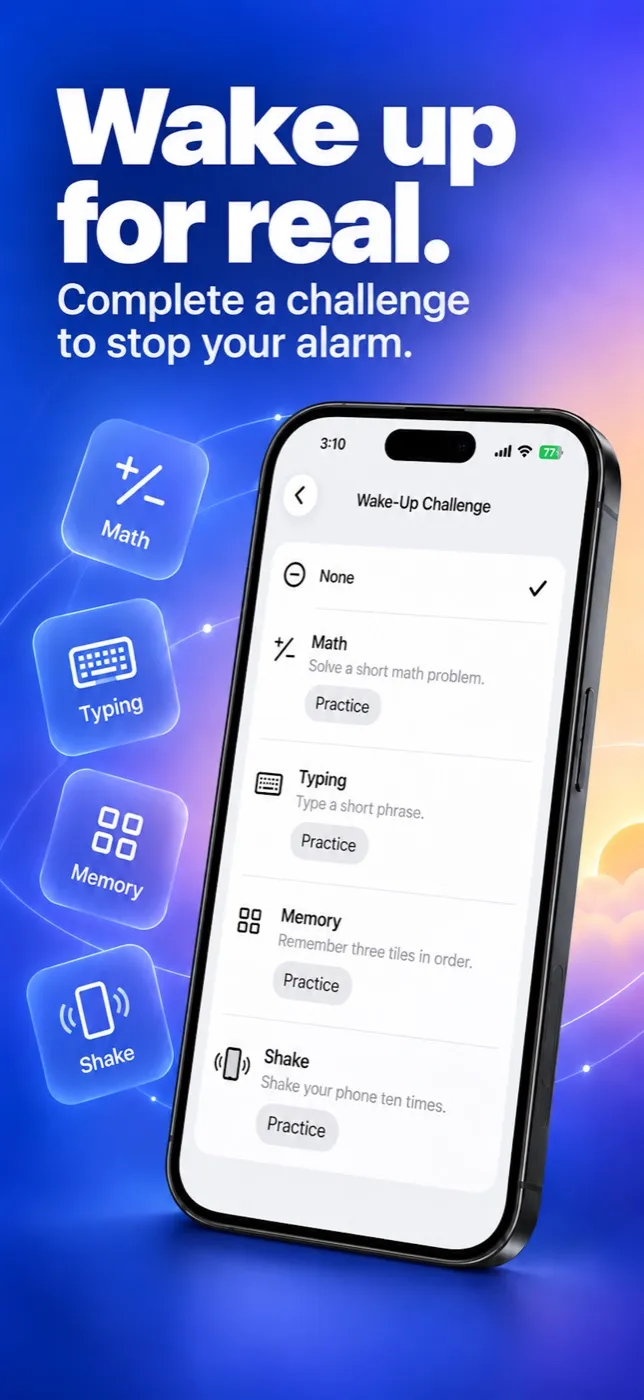
The iPhone Clock app stops with one tap; it has no setting that makes you do anything first. Alarm Pro’s Wake-Up Challenge does: turn it on for an alarm, choose Math, Typing, Memory or Shake, and the alarm keeps ringing until you finish the task. You can practice each challenge first without an alarm going off.
The Clock option list is Apple’s own, from its iOS 26 user guide as of October 11, 2026. Alarm Pro requires iOS 26.1 or newer.
Free to download and use · Advanced features available with in-app purchases
01 / The built-in alarm
Does the iPhone Clock app have a math or puzzle alarm?
No. Apple’s guide lists what a Clock alarm can be given: Repeat, Label, Sound, Snooze and Snooze Duration.[1] Nothing in that list stands between you and the Stop button, so a heavy sleeper can silence it without ever opening their eyes.
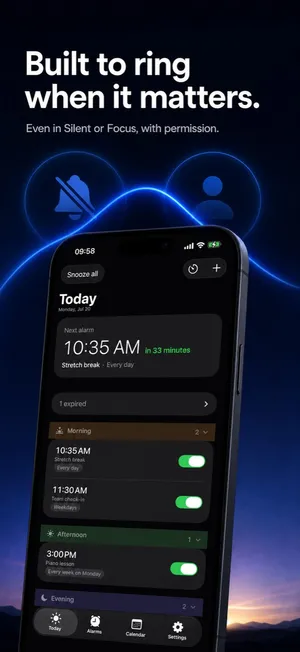
Clock does have two settings worth using anyway. You can turn Snooze off for an alarm so there is no snooze button at all, and Apple notes that alarm volume follows the Ringtone and Alerts slider in Settings › Sounds & Haptics.[1] Clock alarms also play through the speaker when Silent mode is on.[2] Loud and snooze-free helps — but it still takes only one tap to stop.
| Feature | iPhone Clock app (iOS 26) | Alarm Pro 1.6 |
|---|---|---|
| Task before the alarm stops | None among the listed options [1] | Math, Typing, Memory or Shake |
| Keeps ringing until the task is done | Not applicable | Yes — “Ringing until you finish the challenge” |
| Practice without an alarm | Not applicable | Yes — Practice button per challenge |
| Turn snooze off | Yes, per alarm [1] | Yes |
| Sounds in Silent mode | Yes [2] | Yes, with alarm permission |
| Biweekly or monthly morning | No — weekday repeats only [1] | Yes, with the same challenge |
02 / Two minutes tonight
How do I turn on a math alarm in Alarm Pro?
- Open or create the alarm you struggle with, usually the first weekday one.
- Tap Wake-Up Challenge in the alarm editor. The picker lists None, Math, Typing, Memory and Shake.
- Choose a challenge and tap Practice. Practice shows the real task with the line
Practice only. No alarm will ring.
, so you know what is coming at 6 a.m. - Save the alarm. When it rings, stopping it opens the challenge, and the alarm sound continues until you complete it.
The challenge works with any repeat rule, so the every-other-Saturday shift or the first Monday of the month gets the same protection as a weekday alarm.
03 / Pick your poison
Which challenge works best for a heavy sleeper?
- Math — three numbers from 1 to 10 joined by plus and minus, such as 9 − 4 + 6, with an answer from 0 to 30. Trivial problems are rejected. Good for people who wake up once they have to think.
- Typing — type a short phrase such as “feet on the floor”. Fine motor work plus reading.
- Memory — watch a sequence of three flashes across four tiles, then tap it back in order. Hard to do with closed eyes.
- Shake — shake the phone ten times. Physical, and it makes you sit up and hold the phone.
If you tend to switch the alarm off and fall back asleep, Math or Memory is usually the better pick, because both need a moment of real attention. If you wake up groggy but slow, Shake gets your arms moving. Practice two and keep the one you find annoying but doable.
04 / A way out
What if I can’t solve it?
A hard task should not lock you out of your own phone. After three wrong answers, Alarm Pro offers to switch to a different challenge, once. If the second one also fails three times, an Emergency Stop button appears; hold it for three seconds and the alarm stops. It is deliberately slower than solving a sum, so you are not tempted to use it every morning.
On cost: the Wake-Up Challenge is available in the free version on one alarm, because an alarm with a challenge counts as your single advanced alarm. Putting challenges on several alarms — weekday and weekend, or two shift patterns — is part of the in-app purchase, which also adds seven alarm sounds and your own sound.
Alarm Pro: Flexible Alarms
An alarm you have to be awake to stop
Math, Typing, Memory or Shake on any alarm, combined with every-2-weeks, monthly and dated schedules.
Free to download · iOS 26.1 or later
More Alarm Pro guides
Sources
Frequently asked questions
Math alarm questions
Does the iPhone have a built-in math alarm?
No. Apple lists five options for a Clock alarm — Repeat, Label, Sound, Snooze and Snooze Duration — and none of them asks you to do anything before the alarm stops.
How hard are Alarm Pro’s math problems?
Each one chains three numbers from 1 to 10 with plus and minus, such as 7 + 5 − 3, and the answer is between 0 and 30. Problems that are too easy, like 1 + 1 + 1, are thrown out, so you have to think for a few seconds.
What happens if I can’t solve the challenge half-asleep?
After three wrong answers you can switch to a different challenge once. If that one also fails three times, an Emergency Stop appears that you hold for three seconds, so you are never locked out of your own alarm.
Does a Wake-Up Challenge alarm still ring in Silent mode?
Yes, with alarm permission. Alarm Pro sets real system alarms, which sound in Silent mode and during a Focus and ring even when the app is closed.
Is the Wake-Up Challenge free?
You can use it on one alarm in the free version, because an alarm with a challenge counts as your one advanced alarm. Challenges on several alarms at once need the in-app purchase.
Not a medical device: ongoing trouble waking up is worth raising with a doctor. Neobile LLC develops Alarm Pro independently of Apple Inc., owner of the iPhone and iOS trademarks.