
Hair color & makeup try-on
Try your next look on your own photo.
Try new hair colors, highlights, lipstick and blush on your own photo. Find shades that suit your skin tone—and see how they look together.
For iPhone and iPad · iOS 17.0 or later
Your photo stays on your device.
Explore the looks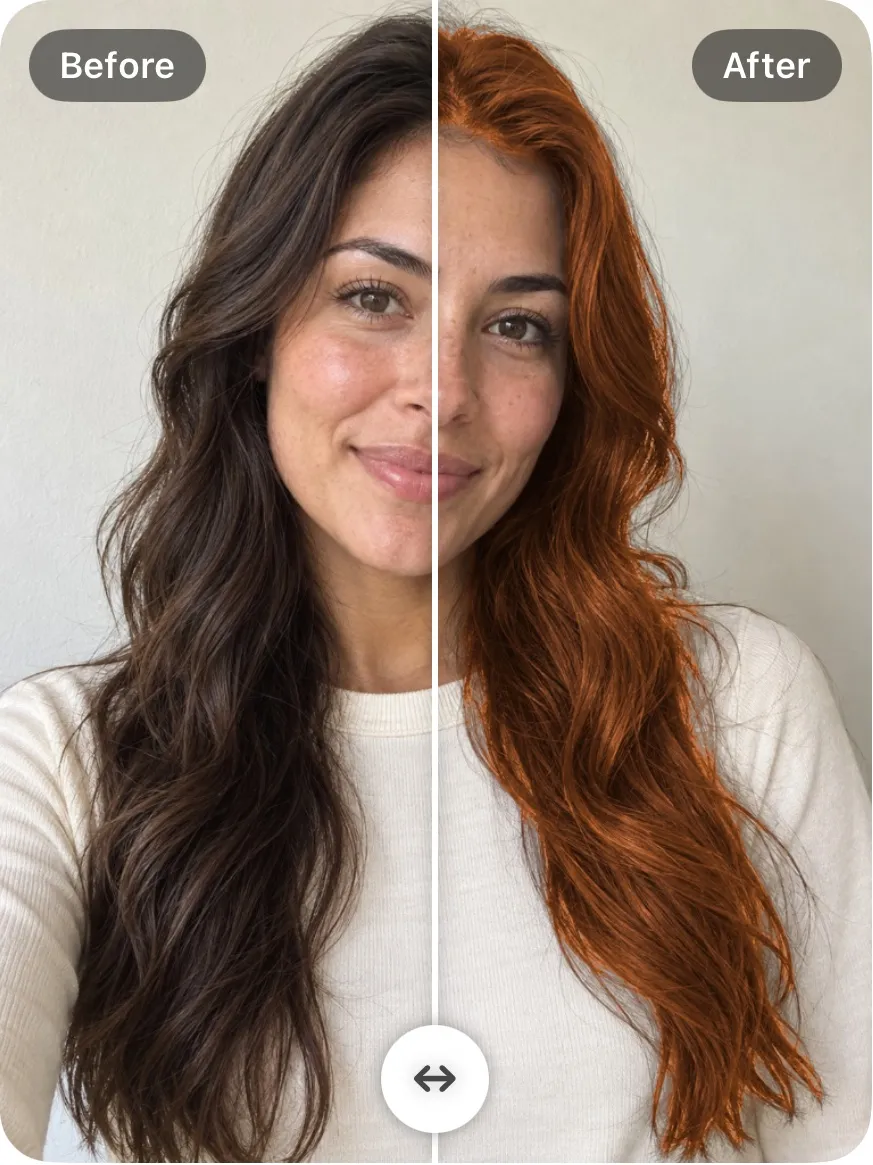
01 / Find your next hair color
A new shade.
A different way to wear it.
Copper, auburn, espresso—or a color you have in mind. Try a recommended shade on your own hair, then explore Solid, Highlights, Ombré and Balayage.
Keep the same photo as you switch looks. Compare the color against your complexion, adjust intensity, and save the look you want to come back to.
- Recommended shades for your coloring
- Four ways to place the color
- Custom colors and adjustable intensity
- Before-and-after comparison on your own photo
Explore this copper example →
Upload your own photo inside the app.
Free to download and use · Advanced features available with in-app purchases
02 / Put your makeup shades to the test
The lip. The blush.
The whole feeling.
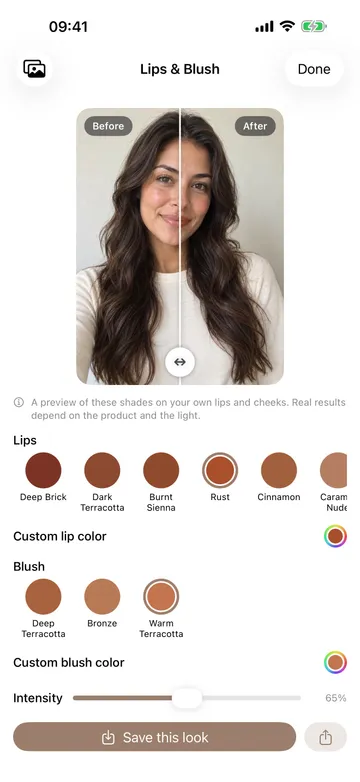
A lipstick swatch looks different once it is on your lips. A blush changes the balance of the whole look. Try both on your own face before choosing your next shade.
Start with lip and blush colors recommended for your palette. Mix a softer lip with a warmer cheek, try a deeper shade, or choose custom colors and adjust their intensity.
One example pairing from the app. Your recommendations depend on your coloring.
See the shade on your face.
Compare lips and cheeks in one photo, including on deeper skin tones.
03 / A personal starting point
Which colors suit
your skin tone?
Your coloring guides the recommendations. Your own photo helps you make the choice.
TrueColors reads skin, hair and eye tones to suggest a seasonal palette based on undertone, depth and clarity. Use those recommendations to find hair colors, lipstick and blush that work with your complexion.
Then experiment. Try a suggested color, compare it with another shade, and build a look that feels like you. Your palette is a starting point for exploring, with outfit-color previews available when you want to see the complete look.
Your try-on guide
How to try hair color, lipstick and blush at home
Choose a clear photo.
Face a window in soft daylight, without a color filter. Keep your face and hair visible. For lip and blush previews, use a relaxed mouth and a photo with both eyes in view.
Explore your shades.
Get color recommendations, then open Hair or Lips & Blush. Try a shade on your own photo, switch the color or dye look, and compare before and after.
Save a look you love.
Adjust intensity, combine your hair and makeup choices, and save the preview to Photos. Bring the color idea to your next salon visit or makeup shopping trip.
Make each comparison useful.
Try one change at a time first: compare two hair shades in the same Solid look, then keep the shade and switch to Highlights, Ombré or Balayage. This helps you notice the difference between the color itself and where it is placed.
For makeup, choose a lipstick shade, then add blush. Reduce intensity for a subtle look or increase it to explore a stronger color. Keeping the same photo and lighting makes your comparisons easier to judge.
You can return to the recommended palette whenever you want a starting point. Use the preview to explore your preferences; your salon or the makeup product you choose will determine the finished result.
Explore the TrueColors appYour next look starts here
Try the color
before you commit.
Hair, lips and cheeks. Your photo. Your possibilities.
On-device analysis and previews · no account needed
A few things to know
Hair color & makeup try-on FAQ
Can I try a different hair color on my own photo?
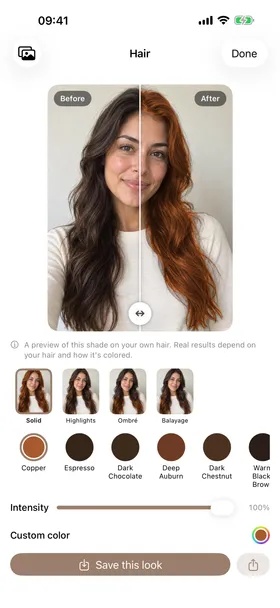
Yes. Choose a selfie or take a photo, then open the hair studio. Your result opens with a new hair color chosen for you; preview the other shades of your season or a custom color in Solid, Highlights, Ombré or Balayage, colored from roots to ends with your shine and texture kept. Drag the divider to compare before and after, and set the intensity.
Can I try lipstick and blush together?
Yes. The Lips & Blush studio lets you select a lip shade and a blush shade, preview them on your face, and adjust intensity. Your lip lines and gloss stay, and blush is a soft flush on the cheeks. You can start with your recommended colors or explore custom shades.
How does TrueColors recommend colors for my skin tone?
It reads your skin, hair and eye colors from the real regions of your photo, places you by undertone, depth and clarity, and gives you the nearest of the twelve seasons, with how sure the reading is and your runner-up season. That palette is the starting point for hair, lips, blush and clothing colors, which you then see on your own photo.
Do I need to know my color season before I start?
No. Start with a selfie in daylight, facing a window, without a filter. TrueColors finds your season and brings you into the try-on. If the photo was taken in warm or cool light, the result says so and suggests a retake; it never blocks the result.
Are my selfies uploaded?
No. Analysis and try-ons run on your iPhone or iPad, and your photo is never sent to a server. There is no account or sign-in, the app works without an internet connection, and the App Store privacy label reads Data Not Collected.
Is TrueColors free?
It is free to download. Your season, core and clothing palettes, the explanation of your result, one hair color chosen for you, draping against your opposite season, one lip and one blush shade and five clothes checks are free. More shades, the hair looks, any-season draping, unlimited checks and the remaining palettes need an in-app purchase.
Will hair dye or makeup look exactly like the preview?
The previews help you compare color ideas. A finished hair color also depends on your starting hair color, dye and salon technique; makeup depends on the product, application and light. Use the preview as a reference when choosing a shade.
Does it work on iPad, and in which languages?
It runs on iPhone and iPad with iOS 17.0 or later and is available in 18 languages, including English, Spanish, French, German, Japanese, Korean, Chinese and Arabic.
Examples shown are actual app previews. For the best color recommendations, use soft daylight and avoid filters. Preview results vary with the photo, the starting hair color and the products you use.